Instagram Video Guide
How to Download Instagram Reels in HD on iPhone, Android and PC
Learn how Reel quality works, how to download a supported public Reel and why the available video quality can differ from what you see while watching Instagram.
Quick answer
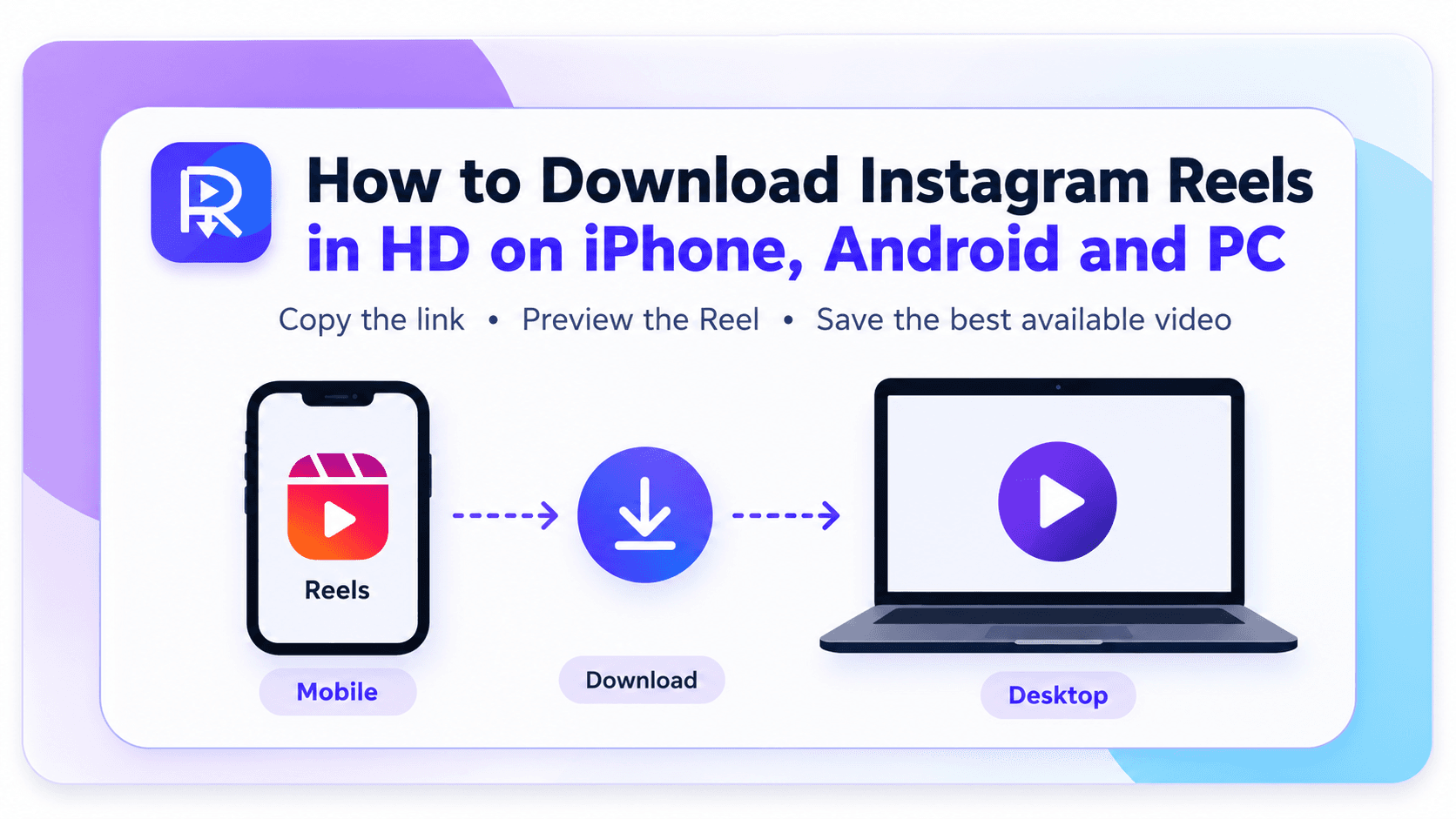
Copy the URL of a supported public Instagram Reel, paste it into the ReelVideoSaver Instagram Reels Downloader, process the link and download the available video file. The actual quality depends on the media available for that Reel.
Instagram Reels are designed for in-app viewing, but there are situations where you may want a local copy of a publicly accessible Reel. You might want to keep a reference copy, watch it offline or organize media you are authorized to save.
The phrase "HD" also needs some context. A download cannot magically increase the quality of the original recording. Resolution, bitrate, compression, the creator's source video and the media version made available by Instagram all influence the final file.
What does HD mean for an Instagram Reel?
HD generally refers to a video with a relatively high display resolution compared with lower-resolution video. For vertical Reels, the important properties are not only pixel dimensions but also bitrate, frame rate, compression and the quality of the original recording.
A file with larger dimensions is not automatically better in every respect. A heavily compressed video can have a higher nominal resolution while looking worse than a cleaner source at a lower resolution. The available source therefore matters more than the word "HD" by itself.
Resolution
The number of pixels affects how much visual detail can be represented, especially on larger displays.
Bitrate and compression
Compression affects how much information is retained. A high-resolution file can still contain visible compression artifacts.
Frame rate
Frame rate affects motion smoothness. It is separate from resolution and does not automatically determine whether a video is HD.
Original recording
The creator's original camera or editing export sets an important limit on the detail that can survive later processing.
Why downloaded Reel quality can vary
The video you download is not necessarily an untouched copy of the creator's original camera file. Social platforms process uploaded media for storage, delivery and playback. The source available through a public Reel can therefore have different characteristics from the original file on the creator's device.
Think of the quality as a chain
1. Original recording
Camera quality, lighting, focus, stabilization and the original recording settings determine the starting point.
2. Editing and export
Editing software and export settings can change resolution, bitrate, frame rate and compression before the video is uploaded.
3. Platform processing
Instagram may process uploaded media into versions suited to its delivery system. This can affect the file available for playback or retrieval.
4. Downloadable source
A downloader can only work with media that is actually available from the submitted public Reel. It cannot recreate information that is absent from that source.
How to download an Instagram Reel in HD
The following workflow is intended for supported public Reel links. You do not need to provide your Instagram password.
- 1
Copy the individual Reel URL
Open the Reel in Instagram, choose Share and tap Copy link. On desktop, copy the complete address of the individual Reel page instead of a profile, search or unrelated Instagram URL.
- 2
Open the Instagram Reels Downloader
Open ReelVideoSaver's Instagram Reels Downloader in Safari, Chrome, Edge or another modern browser. The public-link workflow does not require your Instagram password.
- 3
Paste the Reel URL
Paste the copied link into the downloader and start processing. The service checks whether compatible public media can be retrieved from the submitted Reel.
- 4
Download the available video
When a supported video result is available, choose the download option. The resulting file is handled by your browser according to its normal download settings.
Download a supported Instagram Reel
Paste a public Reel URL into the downloader and check the available video result.
Open Instagram Reels DownloaderDownloading Instagram Reels on iPhone
Open Instagram and copy the link to the individual Reel. Then open Safari and visit the Instagram Reels Downloader. Paste the URL, process it and choose the available video download.
Safari normally makes downloaded files available through its Downloads control and the Files app. Depending on your settings, the file may be stored under iCloud Drive or On My iPhone.
Where to look: Safari Downloads → Files app → Downloads.
Downloading Instagram Reels on Android
Copy the individual Reel URL, open Chrome or another modern browser and paste the link into the Instagram Reels Downloader. Process the link and select the available video result.
Chrome normally saves downloaded videos in Downloads. You can also open Chrome's Downloads screen or use the device's file manager to locate the completed file.
If you cannot find the file immediately, check your browser's Downloads page before trying the download again.
Downloading Instagram Reels on Windows or Mac
Open the individual Reel in your desktop browser and copy its complete address. Paste that address into the Instagram Reels Downloader and process it.
Use the individual Reel URL rather than a creator profile, search page, hashtag page or unrelated Instagram address.
How to identify the correct Reel URL
A downloader needs the address of the specific media page you want to process. The safest approach is to open the Reel itself in Instagram and use the Share → Copy link option.
Avoid copying a creator's profile address, a search-results URL or another page that merely contains a link to the Reel. If the submitted address does not identify the individual Reel, the downloader may not know which media you intended to process.
Simple rule: open the Reel first, then use Instagram's own Copy link action from that Reel.
When an Instagram Reel will not download
A Reel that fails to download is not necessarily caused by a problem with your device. Public media can be restricted, removed or temporarily delivered differently by Instagram.
The Reel belongs to a private account or requires access that is not publicly available.
The Reel was deleted, restricted, archived or otherwise made unavailable.
The submitted link points to a profile, search page or another location instead of the individual Reel.
The public media is temporarily unavailable or Instagram has changed how it is delivered.
A browser extension, privacy filter or network setting is interfering with the request.
The Reel may be accessible to your logged-in Instagram session but not available through the public-link workflow.
The Reel plays in Instagram, but the download fails
This situation can be confusing. Being able to watch a Reel in the Instagram app does not guarantee that the same media is publicly retrievable through an external downloader.
Instagram can use your logged-in session, apply account or privacy controls, serve different media versions or temporarily change the way public media is delivered. An external public-link workflow has access only to what is publicly retrievable from the submitted URL.
Try these checks first
- • Copy the URL again directly from the Reel's Share menu.
- • Make sure you copied the individual Reel rather than the creator profile.
- • Check whether the Reel is publicly accessible without your Instagram account session.
- • Try another supported public Reel to determine whether the issue is specific to one piece of media.
- • If the problem started recently, try again later because public media delivery can change.
Why a downloaded Reel may not look exactly like the original
A downloaded file can differ from the version you remember seeing in Instagram. Playback can be optimized for your connection and device, while a downloadable source may have different resolution, bitrate, frame rate or compression characteristics.
There is also an important distinction between the creator's original file and the media available from Instagram. If the original upload was compressed or exported at a lower quality, downloading it cannot restore the missing detail.
Resolution is only one factor
Pixel dimensions tell you how much spatial detail the file can represent, but bitrate, compression and source quality also affect how the video looks.
Bigger does not mean better
A larger-resolution file cannot compensate for a blurry, noisy or heavily compressed original recording.
Copyright and responsible use
A Reel being publicly visible does not automatically mean that its video is free to republish. Videos can contain copyrighted footage, music, artwork, trademarks or other protected material.
Download a Reel for uses you are authorized to make. If you plan to repost, edit, publish or monetize someone else's content, check ownership, licensing and any permission requirements before using the downloaded file.
Do not provide your password
A public-link downloader should not require your Instagram credentials.
Use the individual Reel URL
Submit the specific media address rather than unnecessary account information.
Check the content rights
A Reel may include material owned by the creator or by another rights holder.
Get permission for reuse
Check licensing or permission before publishing downloaded content as your own.
Frequently asked questions
Can I download every Instagram Reel in HD?
No. The Reel needs to be publicly accessible and supported, and the available media quality depends on the source delivered for that Reel. Private, deleted, restricted or unavailable Reels may not work.
Does downloading a Reel in HD improve its original quality?
No. Downloading cannot create detail that was not present in the available source. If Instagram has processed or compressed the original upload, the downloaded file cannot restore information already lost.
Do I need an Instagram password?
No. The public-link workflow does not require you to provide your Instagram username or password.
Can I download Instagram Reels on iPhone?
Yes, when the Reel is supported. Use Safari or another compatible browser, download the available video file and check the browser's Downloads area or the Files app.
Where are downloaded Reels stored on Android?
Chrome and many Android browsers normally save downloaded files in the Downloads folder. You can also check the browser's Downloads screen or your device's file manager.
Why does a downloaded Reel look different from the Reel in Instagram?
The Instagram app may display media using a playback version optimized for the current device or connection. The downloadable media available from a public Reel can have different dimensions, bitrate or compression characteristics.
Why does an Instagram Reel play normally but fail to download?
Playing a Reel while logged into Instagram does not necessarily mean the same media is publicly retrievable through an external public-link workflow. Privacy controls, temporary platform changes, unavailable media variants or access restrictions can affect downloading.
Can I repost a downloaded Instagram Reel?
Downloading a Reel does not automatically give you permission to republish it. Check the creator's rights, applicable licenses and any other permissions required before reusing downloaded content.
Related ReelVideoSaver guides and tools
Instagram Reels Downloader
Download supported public Instagram Reels as compatible video files.
Instagram Video Downloader
Download supported public Instagram video posts.
Instagram Audio Downloader
Extract compatible audio from supported public Instagram Reels and video posts.
Download Instagram Reel Audio as MP3
Understand the difference between saved Instagram sounds and standalone MP3 files.